

August 8, 2026
Is Claude Code snooping through your file system? Here's how to prevent it
Want to use Claude Code in the IDE terminal with your local configuration while still keeping it locked in a Docker container for security reasons? This post is for you.
In This Article:
Launching Claude in the working directory is fast, but it’s risky for the reasons I have already explained in this post. But by using it inside the container, we lose all the conveniences of the IDE like file diffs and Git tools. Furthermore, Claude will not have access to the local configuration from the container (global Claude.md and project memory). Is there anything we can do about that? Of course yes.

Let’s assume you already have a setup ready with Docker and Claude. The details depend on the stack you are using. Here is an example using Warden and Magento.
Mounting the global Claude configuration in the container
Open .warden/environments/magento2/php-fpm.base.yml and add the volumes for the Claude Code configuration and project memory.
This is the file that overrides the Warden service for php-fpm, which we previously created to add the commands for installing Claude Code.
services:
  php-fpm:
    build:
      context: ./.warden/environments/magento2/php-fpm
    image: magento2/php-fpm-claude:8.3
    volumes:
      - claudeconfig:/home/www-data/.claude
      - ~/.claude/CLAUDE.md:/home/www-data/.claude/CLAUDE.md
      - ~/.claude/skills:/home/www-data/.claude/skills
      - ~/.claude/commands:/home/www-data/.claude/commands
      - ~/.claude/projects/[LOCAL-MEMORY.PATH]/memory:/home/www-data/.claude/projects/-var-www-html/memory
The next time you run warden env up, the volumes will be mounted, and Claude will be able to use the memory available on your machine within the container.
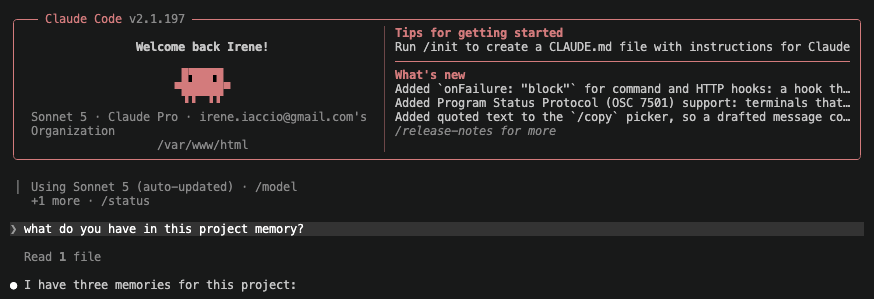
Using Claude Code from the container in your IDE (VSCode)
Unfortunately, this is easily achievable only with VSCode (and its derivatives). If you use JetBrains IDEs like PhpStorm or WebStorm, it is not quite as simple.
Let’s see how to do it in VSCode.
- Open
.warden/environments/magento2/php-fpm.base.ymlagain and add the volumevscodeserver. This is the volume where VSCode installs its server and extensions.
services:
  php-fpm:
    ...
    volumes:
      ...
      - vscodeserver:/home/www-data/.vscode-server

volumes:
  claudeconfig: {}
  vscodeserver: {}
- Then, in
.warden/environments/magento2/php-fpm/Dockerfileadd the following
RUN mkdir -p /home/www-data/.vscode-server
-
Rebuild the php-fpm image (
warden env build php-fpm) -
Now Install the Dev Containers extension, if it isn’t already installed

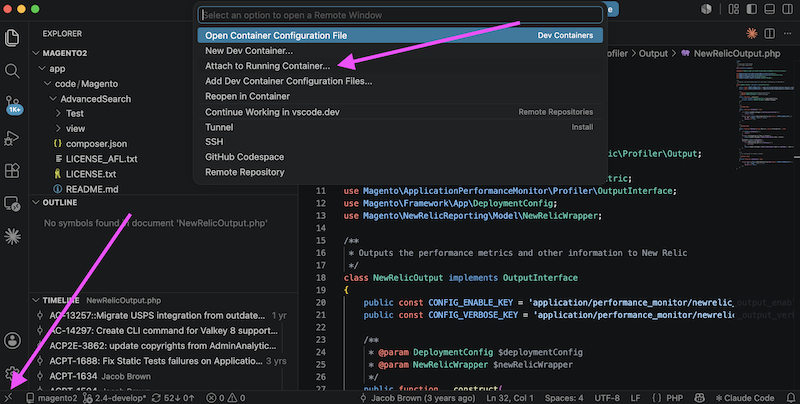
- At the bottom left, you will find the Open a Remote Window icon (see screenshot).
Click it and then select Attach to Running Container.
Select your container (with my setup it’s
magento2-php-fpm-1)
- A new VSCode window connected to the Warden container will open. Just reopen your project there, and you’re good to go.