

August 8, 2026
Is Claude Code snooping through your file system? Here's how to prevent it
As AI has become an indispensable tool in our work as developers, questions about privacy and independence from large corporations have become increasingly pressing.
In This Article:
It’s inevitable. The more we become dependent on LLMs, the more we’ll be forced to submit to pricing policies, surrender personal data, and who knows what other conditions we can’t even imagine today. But we can no longer work without AI, so I, like many others, have begun to explore what local AI can offer.
To have a local AI you need to find an AI that has open weights and that has a quantized model that is light enough for the RAM of a home computer.
📕Vocabulary: A quantized model is a model that has been compressed through a quantization process. That is, the numbers it contains are rounded to take up less memory. This reduces the precision of the responses a little but allows the model to run on even very low-performance machines.
Meet Qwen

There are several models released as open weight (Meta’s Llama, Deepseek, Alibaba’s Qwen, Google’s Gemma, Microsoft’s Phi, etc.), but the one most commonly used locally is Alibaba’s Qwen because they have invested the most in distributing lightweight quantized models that can run on home computers or even mobile phones.
Qwen, which literally means something like “a thousand questions” (千问), can of course be used via API or via a Desktop application (Qwen Studio) but what we are interested in now is the local execution.
Installing and using Qwen locally is quite simple, but you can’t get help from Claude, in fact Claude is quite reticent when it comes to competitors and more than once I’ve heard answers like “it can’t be done, it’s better to use Claude”. I’m back to using Google and asking questions on forums.
Among the most useful sources I recommend this video and this other one
How to run Qwen on macOS
Using Qwen chat
- Install Ollama
Ollama is a tool that downloads and serves quantized models locally. You can think of it as a sort of package manager for models, like npm or yarn for Node.
curl -fsSL https://ollama.com/install.sh | sh
- Download a highly compressed version of Qwen via Ollama
Qwen3.5 is not the most recent version, nor the most powerful, but it’s the one that runs most easily on my computer (a MacBook Pro M1 Max, 32 GB of unified RAM) which I assume is similar to what many of you have, not a particularly powerful machine. If you have something more powerful, or even a NAS, you can also use Qwen3.6 or go for Deepseek.
You can find features and benchmarks here
ollama pull qwen3.5
- Chat with your local Qwen
At this point you are already able to chat with your local version of Qwen, just by running the following command
ollama run qwen3.5
How to run Qwen Code
Read, write, execute files, and perform tasks
- Get Qwen Code CLI
Download and install Qwen Code CLI, it’s like having Claude Code
bash -c "$(curl -fsSL https://qwen-code-assets.oss-cn-hangzhou.aliyuncs.com/installation/install-qwen.sh)"
- Configure
Create a ~/.qwen/settings.json file with following content:
{
  "env": {
    "OLLAMA_API_KEY": "placeholder"
  },
  "modelProviders": {
    "openai": [
      {
        "id": "qwen3.5",
        "name": "Qwen 3.5",
        "envKey": "OLLAMA_API_KEY",
        "baseUrl": "http://localhost:11434/v1",
        "generationConfig": {
          "timeout": 600000,
          "contextWindowSize": 32768,
          "samplingParams": {
            "max_tokens": 32768,
            "temperature": 0.5,
            "top_p": 0.8
          }
        }
      }
    ]
  },
  "model": {
    "skipStartupContext": true
  },
  "privacy": {
    "usageStatisticsEnabled": false
  },
  "$version": 4
}
OLLAMA_API_KEY is a placeholder because Ollama doesn’t require authentication,
we would need a real API key if we wanted to connect to the remote API of Qwen (or OpenAI, or whatever)
modelProviders is the list of backends that Qwen Code can connect to run the model.
In our case, we’re using the one that exposes ollama on port 11434 and uses the OpenAI format
(that’s why it’s called openAI, it uses that format for any backend).
The configurations are a matter of balancing precision in the responses and computer performance, they also depend on the tasks you intend to assign to Qwen, I never assign it huge tasks all at once and I am very specific in my requests, so with these configurations I go quite well.
- Run
Call the backend configured in step 2 and declare the model you want to use (it overrides the one in the configurations). You’re ready to use Qwen Code.
export OLLAMA_CONTEXT_LENGTH=32768 && qwen --auth-type openai --model qwen3.5
Limits and recommendations
The biggest limitation is computer power. This video compares Claude’s and Qwen’s performance on complex tasks and the results are almost comparable. (he uses a more recent model than the one I used in this guide, but I made a conservative choice). I couldn’t do such big experiments on my computer.
However, I’ve noticed that it works very well for conversations, text and code analysis and small tasks with context and very precise instructions.
It’s not comparable to Claude in tasks related to creative writing: It’s geared toward Eastern languages, and it often uses unnatural expressions in English or Italian (I don’t care because I’m against the use of AI in writing for reasons I’ve explained on LinkedIn and in another blog post).
This post isn’t about preferring one model over another. The real challenge is playing on multiple fronts, choosing the model best suited to each task. But in this choice it’s also worth considering aspects like autonomy, privacy, and ownership of your own tools, so as not to become dependent on corporations, now or in the future.
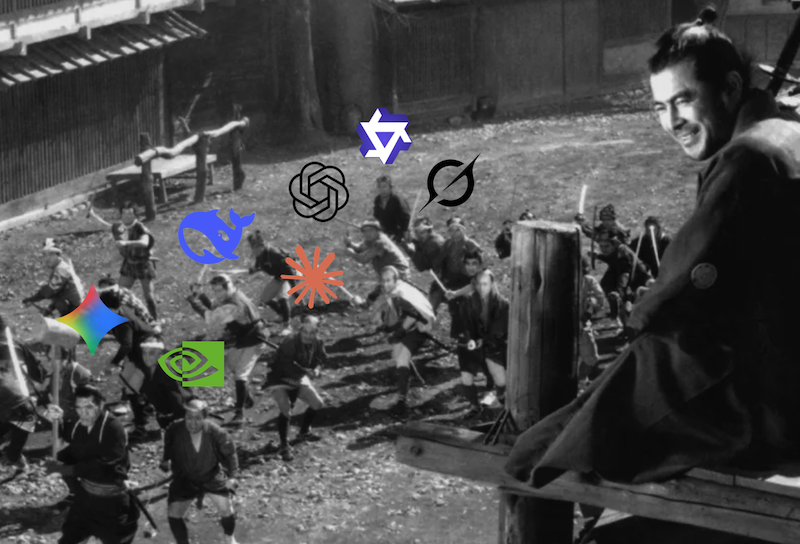 Toshiro Mifune playing both sides in Yōjinbo (用心棒), Akira Kurosawa 1961
Qwen Code funny jokes
If there’s one thing Qwen definitely beats Claude at, it’s jokes.



